
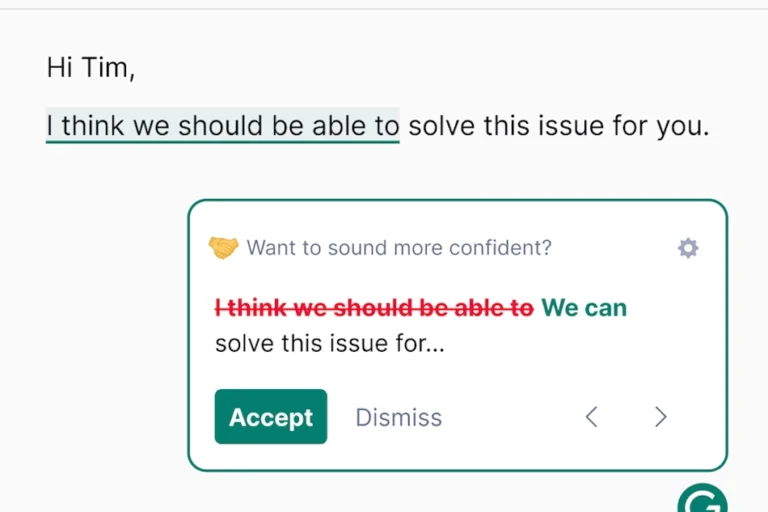
You have rewritten the same sentence four times, stared at the blinking cursor, and re-read an email three times before hovering nervously over “Send.” Whether you are writing a quarterly review, an executive pitch, or a Slack message to your team, second-guessing your grammar and tone drains your time and energy.
Writing well in English is about conveying ideas with speed, precision, and confidence. Grammarly bridges the gap between what you intend to say and how your reader receives it. Here is how to configure, use, and learn from the platform to systematically sharpen your prose.
Why Your Drafts Feel Weak
Weak writing rarely comes from poor thinking. It happens because turning complex thoughts into written text creates friction. You might use three sentences when one would do, rely on hedging words out of habit, or leave confusing phrasing behind.
When you write and edit at the same time, your brain reads what it expects to see rather than what is on the page. You overlook missing words, duplicate phrases, and typos because you already know your intended meaning.
Grammarly acts as a real-time, objective editor. As you type, its engine parses syntactic structure, mechanics, and context. It catches mechanical errors instantly, freeing your mental bandwidth to focus on argument structure, logical flow, and clarity.
Set Custom Goals
Treating Grammarly like a simple spellchecker wastes its best features. A cover letter requires a completely different tone than an internal project update or a blog post. Setting custom goals calibrates the suggestion engine before you type a single word.
Adjusting Domain, Formality, and Intent
Inside the editor, you can adjust four primary parameters:
- Domain: Choose between Academic, Business, General, Technical, Casual, or Creative to enforce strict academic style or allow informal idioms.
- Formality: Set your target to Informal, Neutral, or Formal. A formal setting penalizes contractions like “can’t,” while a neutral setting keeps prose natural and approachable.
- Audience: Toggle between General for accessible phrasing and Expert to use field-specific terminology without triggering readability warnings.
- Intent: Select whether you want to Inform, Describe, Convince, or Tell a Story to guide tone and transition suggestions.
Monitoring the Real-Time Tone Detector
Miscommunication in digital writing often stems from unintended tone. You might intend to sound direct, but a colleague reads your message as curt. Grammarly’s Tone Detector analyzes word choice, punctuation, and phrasing to show whether your message reads as Confident, Friendly, Urgent, or Tentative.
If a proposal triggers a “tentative” alert, look for softening phrases like “I just think,” “maybe we could,” or “I’m no expert, but.” Removing them immediately gives your message more authority.
Building a Custom Dictionary
Nothing disrupts your focus like red squiggly lines under internal codenames, client brand names, or niche industry acronyms. Add your organization’s specific vocabulary to your personal or team dictionary. Grammarly will recognize them across all connected apps and stop flagging false positives.
Eliminate Sentence Clutter
Clear writing is concise. Most early drafts contain verbal padding that buries the core message. Grammarly’s clarity engine highlights sentence bloat so your main point stays front and center.
Full-Sentence Rewrites for Tangled Thoughts
Grammarly Premium flags long, convoluted sentences in blue and offers a full-sentence rewrite. For example:
- Original: Due to the fact that there were unexpected delays in the supply chain, it is necessary for us to postpone the launch date by two weeks. (25 words)
- Grammarly Rewrite: Because of supply chain delays, we must postpone the launch by two weeks. (12 words)
The rewrite delivers the exact same message in half the length, reducing reader fatigue.
Eliminating Passive Voice and Filler Phrases
Passive voice hides accountability and slows down your prose. When Grammarly flags a passive structure like “The audit was conducted by our team,” accept the prompt to switch to active voice: “Our team conducted the audit.”
The tool also flags unnecessary prepositions and empty filler phrases. Common cuts include:
- “In order to” → “To”
- “At this point in time” → “Now”
- “Has the capability to” → “Can”
- “A large number of” → “Many”
Diversifying Repetitive Vocabulary
Repeating the same adjective or verb across three paragraphs makes prose dull. Grammarly detects overused vocabulary and suggests context-appropriate synonyms that fit your document’s tone without making it sound artificial.
Integrate Grammarly Directly into
Copying and pasting text into a separate editor creates unnecessary friction. To build a consistent editing routine, install Grammarly directly where you write.
Browser Extensions
The Grammarly browser extension works inside web apps, checking your text automatically in several key tools:
- Gmail and Outlook Web: Keeps subject lines punchy and body text professional.
- Google Docs: Shows real-time suggestions in a sidebar alongside document comments.
- WordPress and Content Platforms: Catches typos and formatting errors inside drafts before publishing.
- LinkedIn: Helps ensure your posts, comments, and messages sound polished.
Desktop Application for Mac and Windows
The desktop app runs system-wide. A discreet widget appears alongside your cursor in applications like Microsoft Word, Slack, Notion, and Apple Mail. You can accept edits with a single click or shortcut without breaking your writing flow.
Mobile Keyboard
Communication continues away from your desk. The Grammarly Keyboard for iOS and Android replaces or complements your default mobile keyboard, running grammar checks and monitoring tone before you send quick messages on the go.
Learn Grammar Rules
Accepting every suggestion on autopilot prevents you from making lasting improvements as a writer. Taking a moment to understand each edit transforms the software into a personalized learning tool.
Read the Explanation Cards
Every correction comes with a concise note explaining the rule behind it. Instead of clicking past the suggestion, check why it was flagged: is it fixing a comma splice, separating an introductory clause, or correcting a modifier?
Understanding the logic behind a suggestion helps you internalize the rule and avoid making the same error in future drafts.
Analyze Weekly Insights
Grammarly sends a weekly performance summary by email. Pay attention to two key areas:
- Top Grammar Mistakes: Highlights your three most frequent errors, giving you a clear focus for improvement.
- Vocabulary & Productivity Metrics: Tracks your total word count and unique vocabulary usage over time.
Reviewing these trends helps you identify personal writing habits, fix recurring mistakes, and build stronger writing skills over time.